Web Portals

A web portal is a specially designed website that brings information from diverse sources, like emails, online forums and search engines, together in a uniform way. Usually, each information source gets its dedicated area on the page for displaying information (a portlet); often, the user can configure which ones to display. Variants of portals include mashups and intranet "dashboards" for executives and managers. The extent to which content is displayed in a "uniform way" may depend on the intended user and the intended purpose, as well as the diversity of the content. Very often design emphasis is on a certain "metaphor" for configuring and customizing the presentation of the content (e.g., a dashboard or map) and the chosen implementation framework or code libraries. In addition, the role of the user in an organization may determine which content can be added to the portal or deleted from the portal configuration.
Five Web Portals:
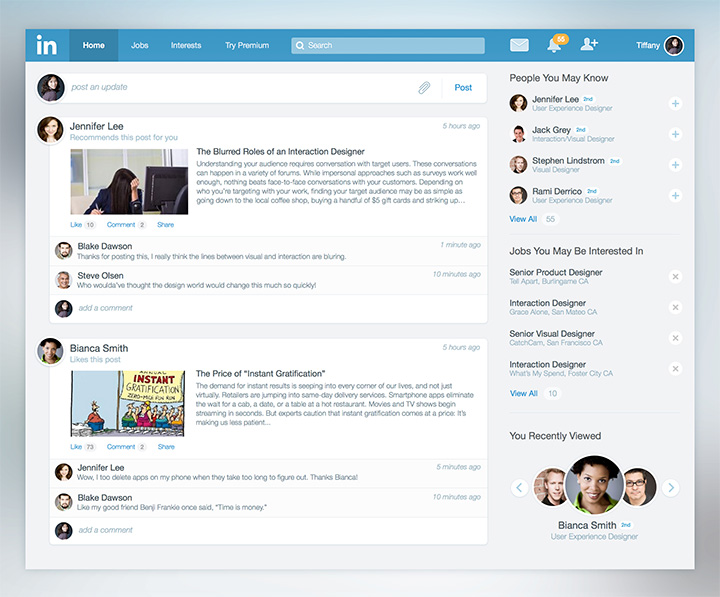
LinkedIn (/lɪŋktˈɪn/)
is an American business and employment-oriented service that operates via websites and mobile
apps. Founded on December 28, 2002,[4] and
launched on May 5, 2003,[5] it
is mainly used for professional
networking, including employers posting jobs and
job seekers posting their CVs.
As of 2015, most of the company's revenue came from selling
access to information about its members to recruiters and sales
professionals.[6] Since
December 2016 it has been a wholly owned subsidiary of Microsoft.
As of June 2019, LinkedIn had 630 million registered members in 200 countries.
LinkedIn allows members (both workers and employers) to
create profiles and
"connections" to each other in an online social
network which may represent real-world professional
relationships. Members can invite anyone (whether an existing member or
not) to become a connection.[7] LinkedIn
participated in the EU's International
Safe Harbor Privacy Principles.[8]
OUTLOOK
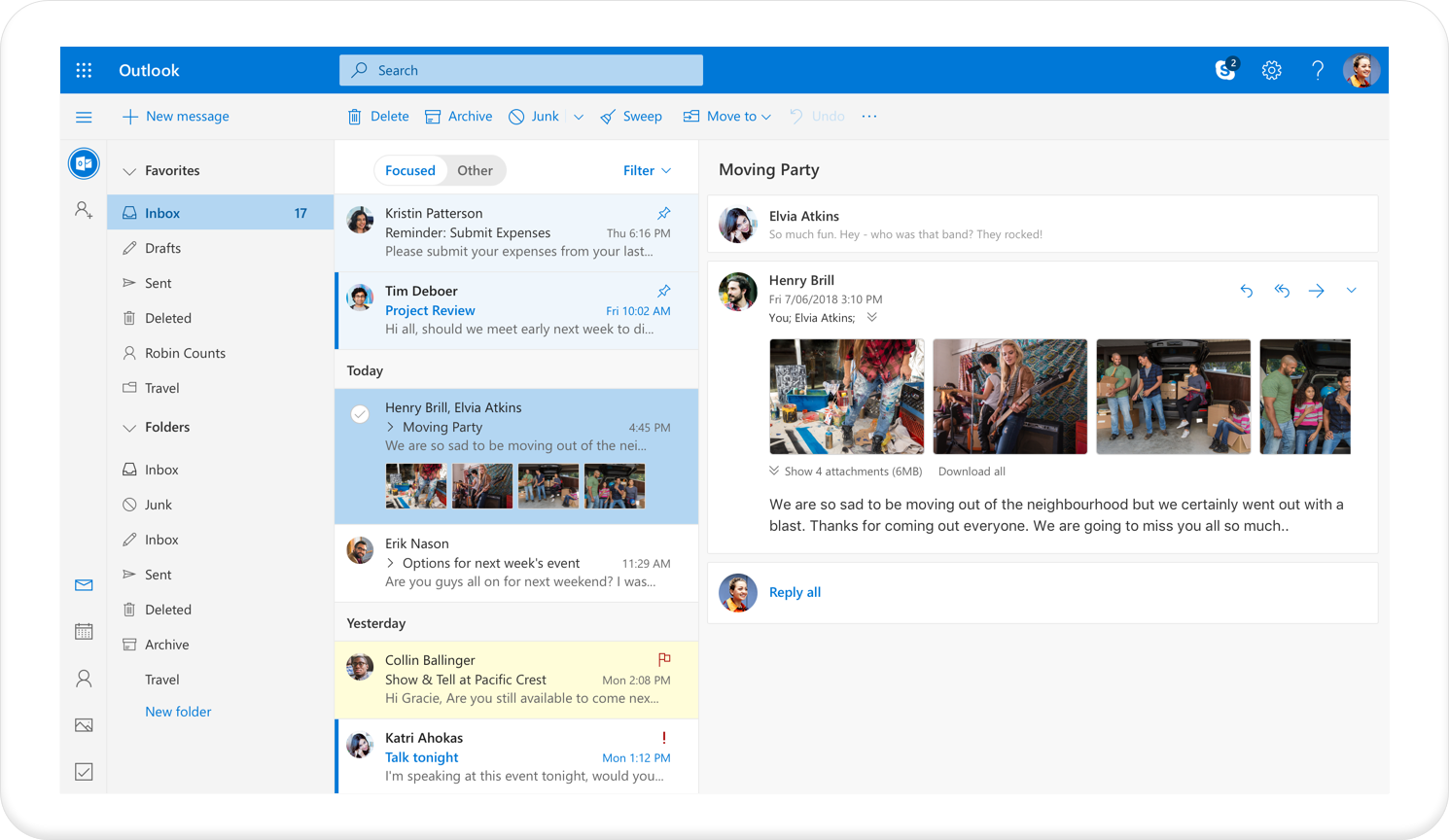
Outlook.com is a web-based suite of webmail, contacts, tasks, and calendaring services
from Microsoft.
One of the world's first webmail services,[3] it
was founded in 1996 as Hotmail (stylized
as HoTMaiL)
by Sabeer Bhatiaand Jack Smith in Mountain View, California, and headquartered in Sunnyvale.[4][5] Microsoft
acquired Hotmail in 1997 for an estimated $400 million and launched it as MSN Hotmail, later
rebranded to Windows
Live Hotmail as part of the Windows Live suite
of products.[2][6] Microsoft
released the final version of Hotmail in October 2011[7][8][9] and
it was replaced by Outlook.com in 2012.
MSN
MSN (stylized
as msn) is a web
portal and related collection of Internet services
and apps for Windows and mobile
devices, provided by Microsoft and
launched on August 24, 1995, the same release date as Windows
95.[3]
The
Microsoft Network was initially a subscription-based dial-up online
service that later became an Internet
service provider named MSN
Dial-up. At the same time, the company launched a new web portal
named Microsoft Internet Start and set it as the first default home
page of Internet
Explorer, its web
browser. In 1998, Microsoft renamed and moved this web portal to the domain
name www.msn.com, where it has remained.[4]

JAHIA
Jahia is a software vendor that aims to provide the most comprehensive and integrated open-source Java Digital Experience Platform (DXP) that unifies content, applications and customer data for truly personalized customer experience.
With strong continuous integration capabilities and easy to use interfaces, the product helps IT & Marketing teams build and manage together all their multichannel initiatives.
Founded in 2002 and headquartered in Geneva, Switzerland, Jahia Solutions Group has its North American headquarters in Washington, DC, with offices in Houston, Toronto and throughout Europe. Customers include hundreds of global brands and organisations such as HomeAway, BNP Paribas, Sodexo and the European Parliament.

INTRANET CONNECTIONS
Intranet Connections is a cloud-based intranet solution for corporations, credit unions, banks, financial service firms, hospitals and more. The solution helps enable communication between employees and distribute company information.
Intranet Connections allows users to control document versions and review processes and also alerts authors when content is updated. The solution also allows users to create approval workflows, delegate content publishing tasks and assign access permissions based on employee level, group, or role.
microsoft yammer
WHAT IS YAMMER?
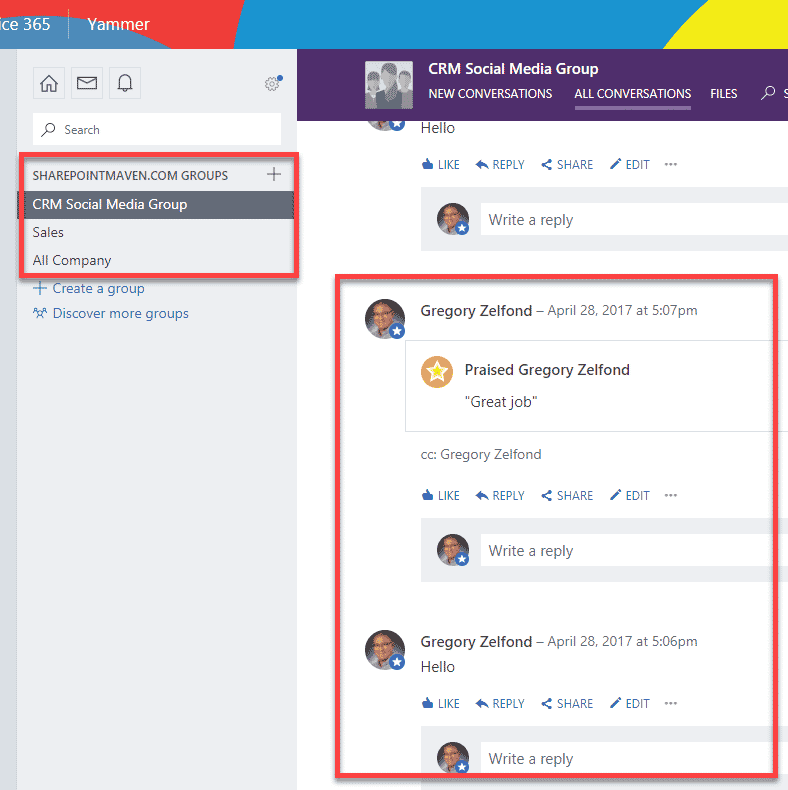
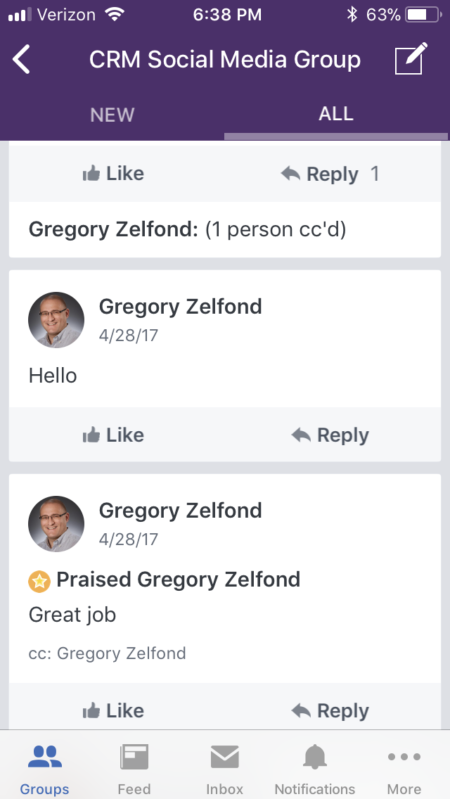
Yammer is an Enterprise Social Network (ESN) that is part of your Office 365 subscription. It allows for Facebook-style communication with users inside or outside of your organization.
HOW CAN I ACCESS YAMMER?
Desktop Browser
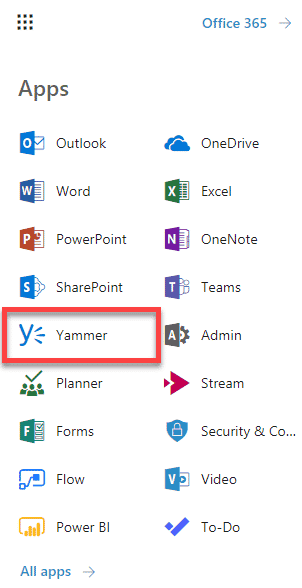
You can access Yammer on your desktop using the Yammer link from
Mobile App
If you are a road warrior, you can also access Yammer and participate in conversations using your mobile device. Yep, there is an App for that! 
HOW DOES YAMMER INTEGRATE WITH SHAREPOINT AND OFFICE 365?
Historically, Yammer was not very well integrated into other Office 365 assets. As a result, its user adoption suffered. However, recently, there were key improvements made by Microsoft, and now Yammer seems to be much better integrated with the rest of Office 365 components. Here are a few examples:
Integration with Office 365 Groups
If you like the flexibility of Yammer communication (instead of email), yet also enjoy the assets you get as part of Office 365 Group (SharePoint Site, Planner, OneNote, etc.), you can connect Yammer to an Office 365 Group. Here is what you need to do to make it happen:
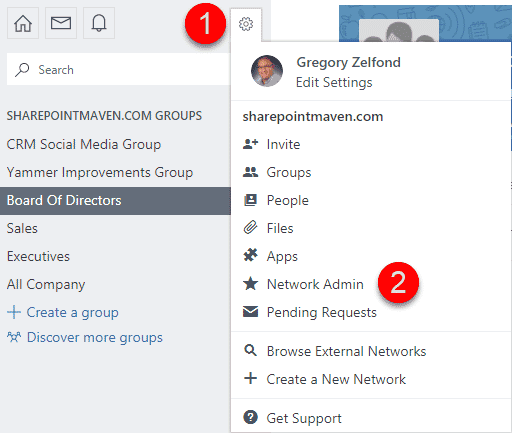
- In Yammer, click on Gear Icon > Network Admin
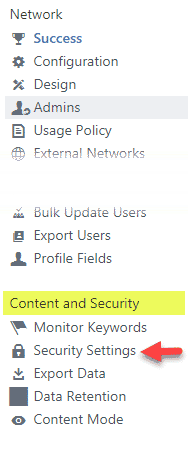
- Under Content and Security, click on Security Settings
- Under Office 365 Identity Enforcement, click the Enforce Office 365 identity
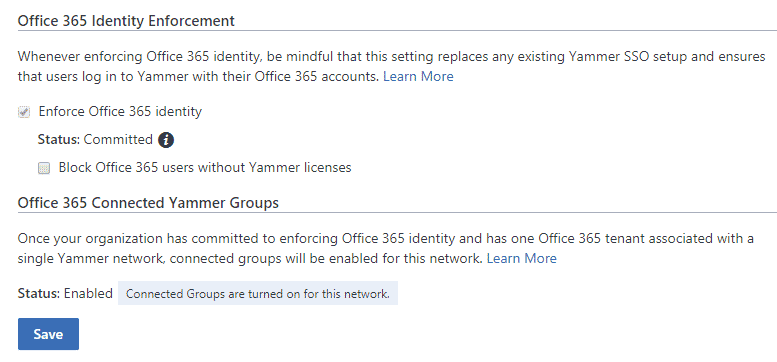
- On the next screen, make sure to select Committed option (no the 7-day trial one)
- Click Save button to save the changes
What will happen once you connect Yammer with Office 365 Groups
- When you create a new Yammer Group, it will also provision an Office 365 Group with all the assets you would typically expect in Office 365 Group (SharePoint site collection, Planner, OneNote).
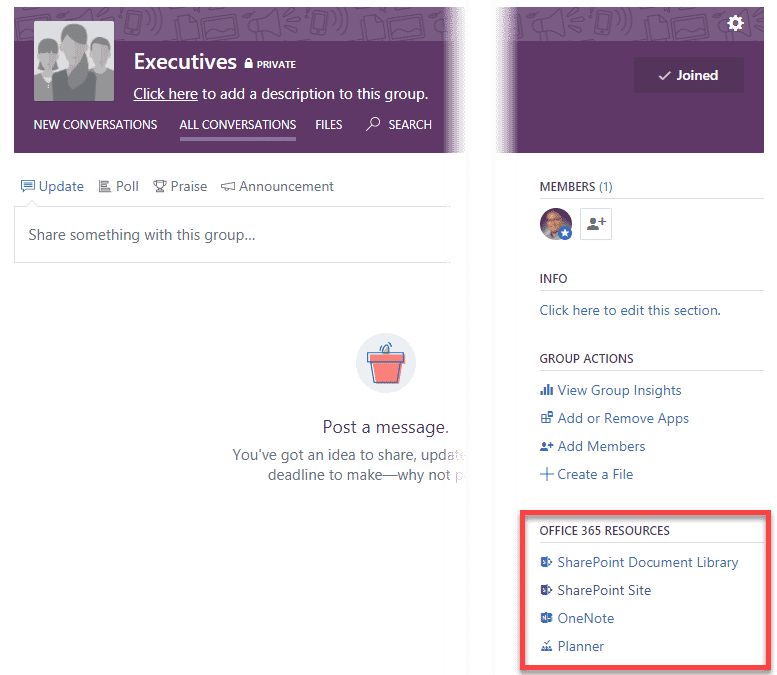
- On the new Yammer Group page, you will notice Office 365 Group resources accessible on the right-side panel. Clicking on each will bring you to the corresponding Office 365 Group asset.
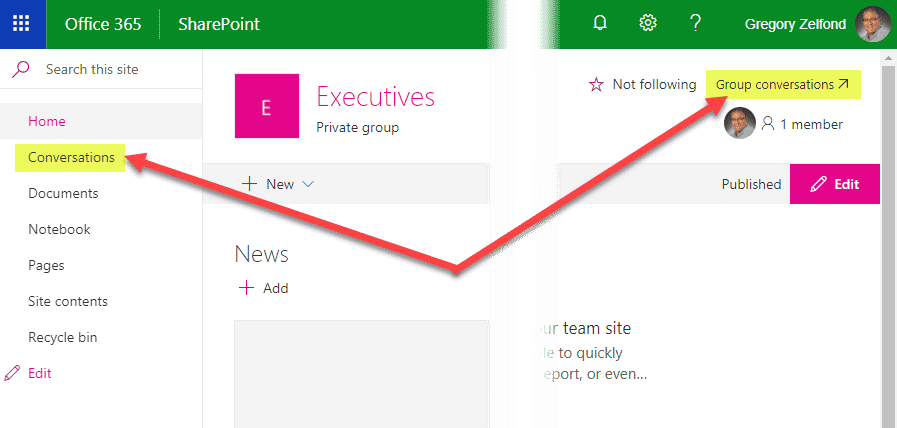
- Likewise, when you click on Conversations feature from Office 365 Group, it will bring you back to the Yammer Group page! That’s correct, there will be no email distribution list or Outlook calendar with the Yammer-connected Group. The email will be replaced with Yammer chat conversation!
"A connected company is more productive and innovative. While other enterprise social networks and collaboration platforms coexist in the company, Yammer was the tool the majority of our employees preferred."
- Luz Rodrigo, Enterprise Social Strategist, Telefonica


nice...
ReplyDelete